 Gearfuse Technology, Science, Culture & More
Have you noticed your iPhone is running out of battery faster than normal? Is your touch screen freezing or is there distortion coming from your speaker? Instead of spending money on fixing the device, it’s worth knowing how to run a diagnostic test on your iPhone.
Being able to run a diagnostic test on your iPhone will help you identify hardware issues, software issues or give you greater understanding of the overall state of your phone. Whether you’re trying to fix your own phone, check a second hand iPhone or are about to sell your old device, simple diagnostic tests can be used to give you some insight into the state of your phone.
Apple does have a number of diagnostic options available to help you diagnose issues with your iPhone. Some of these diagnostic options can be done using only your iPhone, whilst others will need you to contact Apple Support or even use a computer. We’ve listed 6 ways to help you check the state of your iPhone below:
1. Use Apple’s Built-In Diagnostics Mode
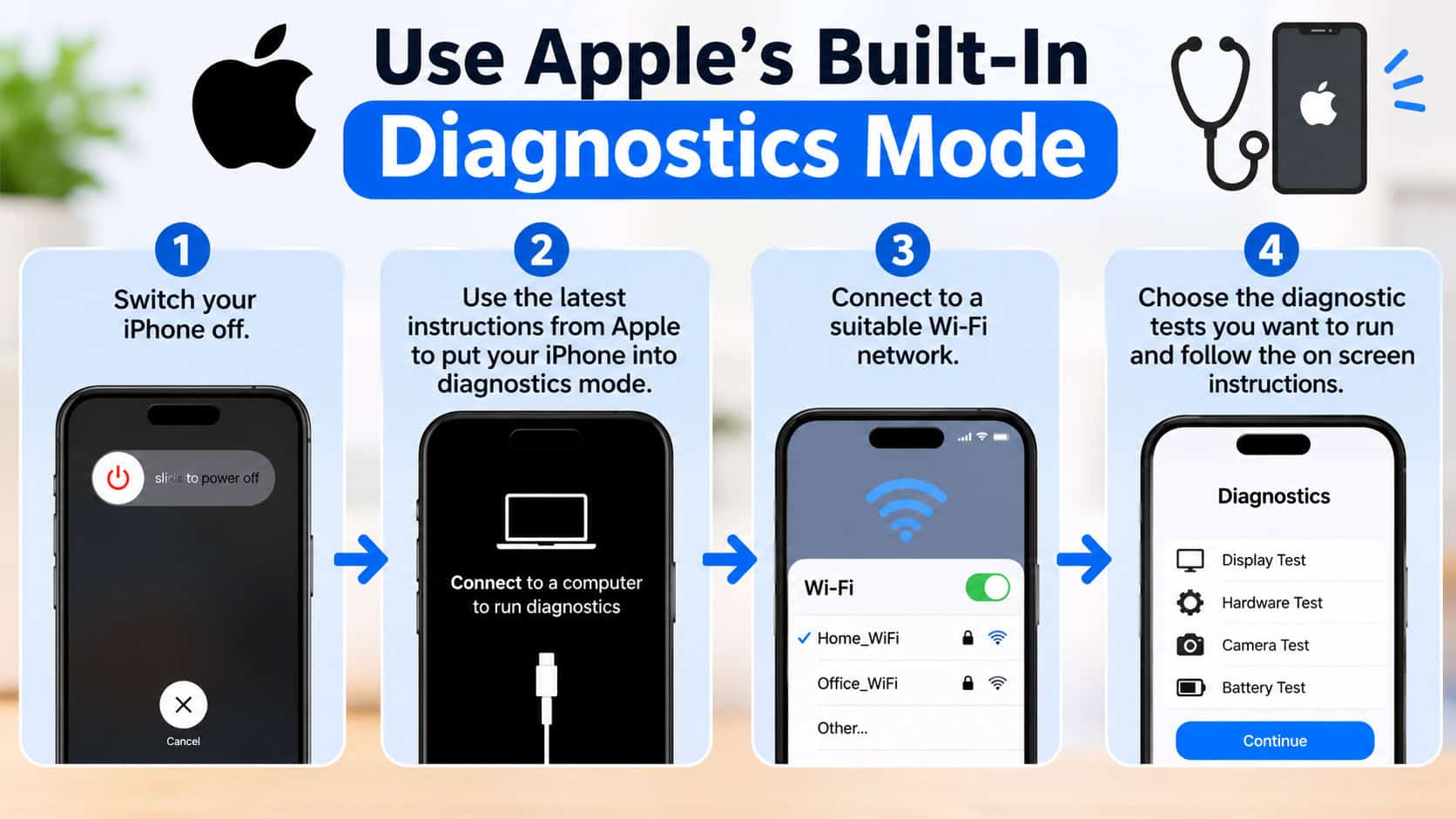
Using the diagnostics mode on your iPhone can help identify if there are any issues with hardware components on your iPhone. This means testing the display, touch screen, rear camera, front camera, speaker and microphone, and the Face ID capability.
Depending on the model, iOS version and diagnostics supported, not every iPhone will have this functionality.
To use diagnostics mode:
- Switch your iPhone off.
- Use the latest instructions from Apple to put your iPhone into diagnostics mode.
- Connect to a suitable Wi-Fi network.
- Choose the diagnostic tests you want to run and follow the on screen instructions.
Some tests may require you to look at your screen, play some tones, record a short clip or check your cameras.
If diagnostics mode isn’t available on your iPhone, you can use one of the other options listed below or contact Apple Support. Don’t assume your iPhone has issues just because you can’t access the diagnostics mode.
Also Read: 10 Best Free Widget Apps for iPhone in 2027
2. Check Battery Health and Performance
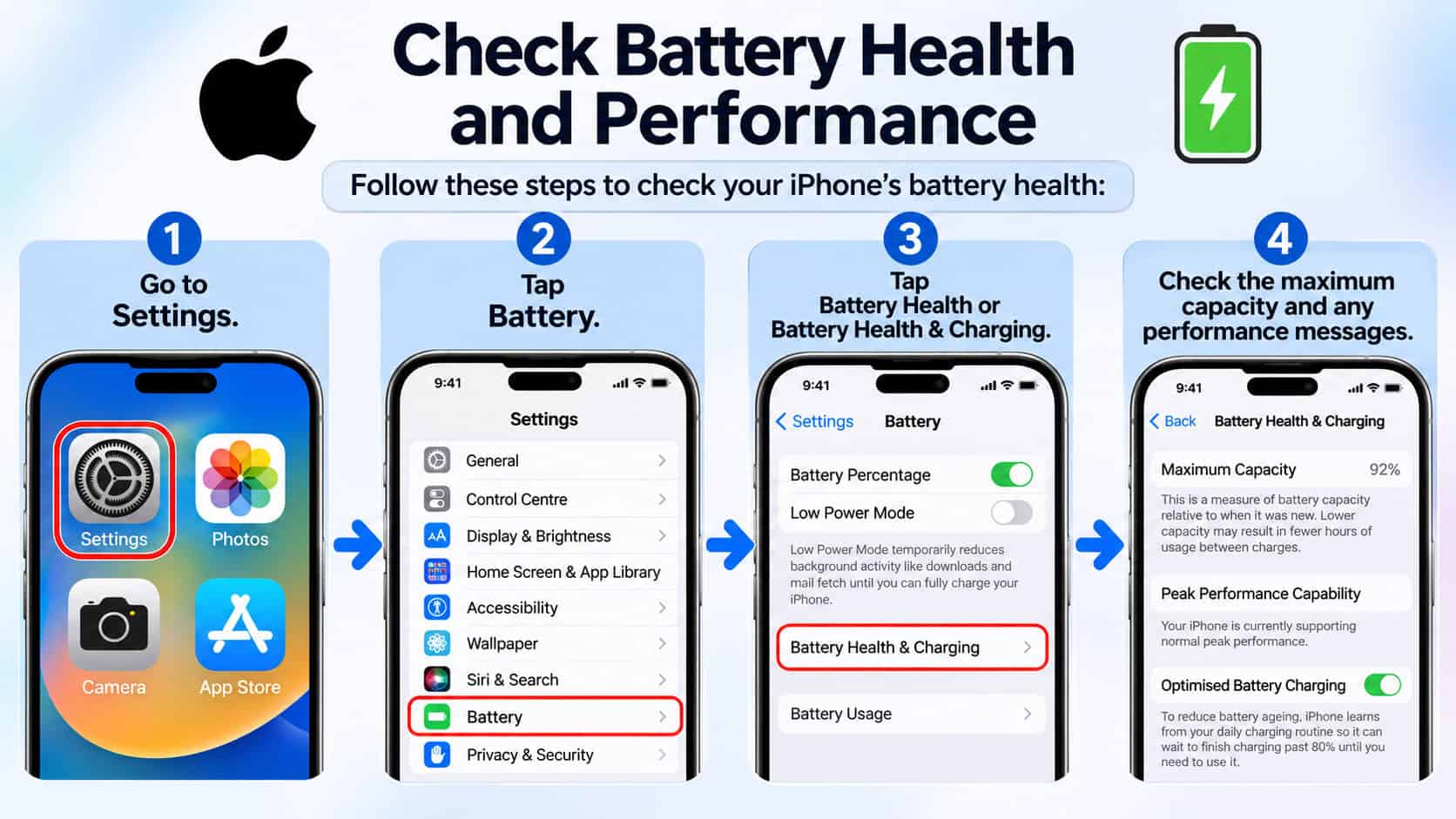
If your iPhone battery is running out of charge quicker than expected, this can make your iPhone feel old. However, sometimes this is simply down to background processes running or high usage apps, poor signal and software updates.
Your Battery Health section will give you great insight.
To check battery health:
- Go to Settings.
- Tap Battery.
- Tap Battery Health or Battery Health & Charging.
- Check the maximum capacity and any performance/service messages.
The maximum capacity will tell you how much charge your battery can hold compared to when it was brand new. The lower the percentage, the less charge it can hold however this doesn’t necessarily mean you’ll need to replace your battery.
If you’re experiencing unexpected shutdowns, fast loss of battery percentage, overheating or any battery service messages, it’s best to get it checked out by a professional.
Battery health only gives insight into this one area of your iPhone, so won’t tell you if your charging port, cameras, speakers etc are all working correctly.
Also Read: How to See Recently Deleted Apps On iPhone and Android
3. Run Diagnostics Through Apple Support
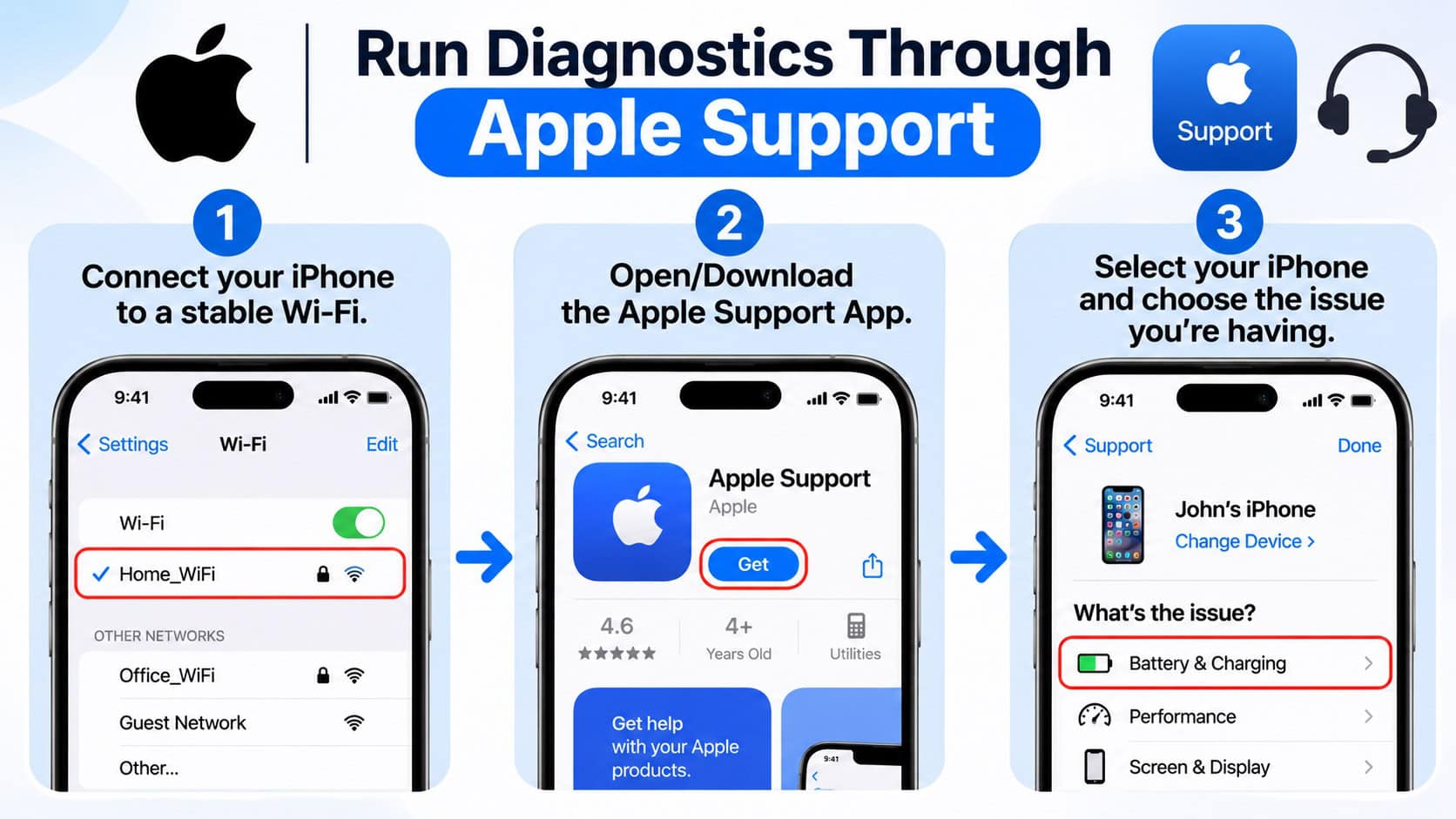
If you’re having issues that aren’t easily explained by standard settings, Apple Support can be a great place to start. Depending on your device, iOS version and the issue you’re experiencing, Apple may offer some guided solutions or diagnostic support.
For example, some connectivity issues can be diagnosed using the tools available from Apple Support.
To get started:
- Connect your iPhone to a stable Wi-Fi.
- Open/Download the Apple Support App.
- Select your iPhone and choose the issue you’re having.
Follow the troubleshooting or diagnostic options.
Ask for further help if needed.
Depending on the issue you’re having, you may be given some instructions to follow. This may include checking your settings, updating iOS or booking a service.
This is useful if your iPhone is constantly losing connection, acting erratically or showing a warning.
Always use official Apple Support. Don’t use any websites or messages that promise hidden diagnostic codes or ask for your Apple Account password.
Also Read: Where To Find Clipboard On iPhone?
4. Review iPhone Analytics Data
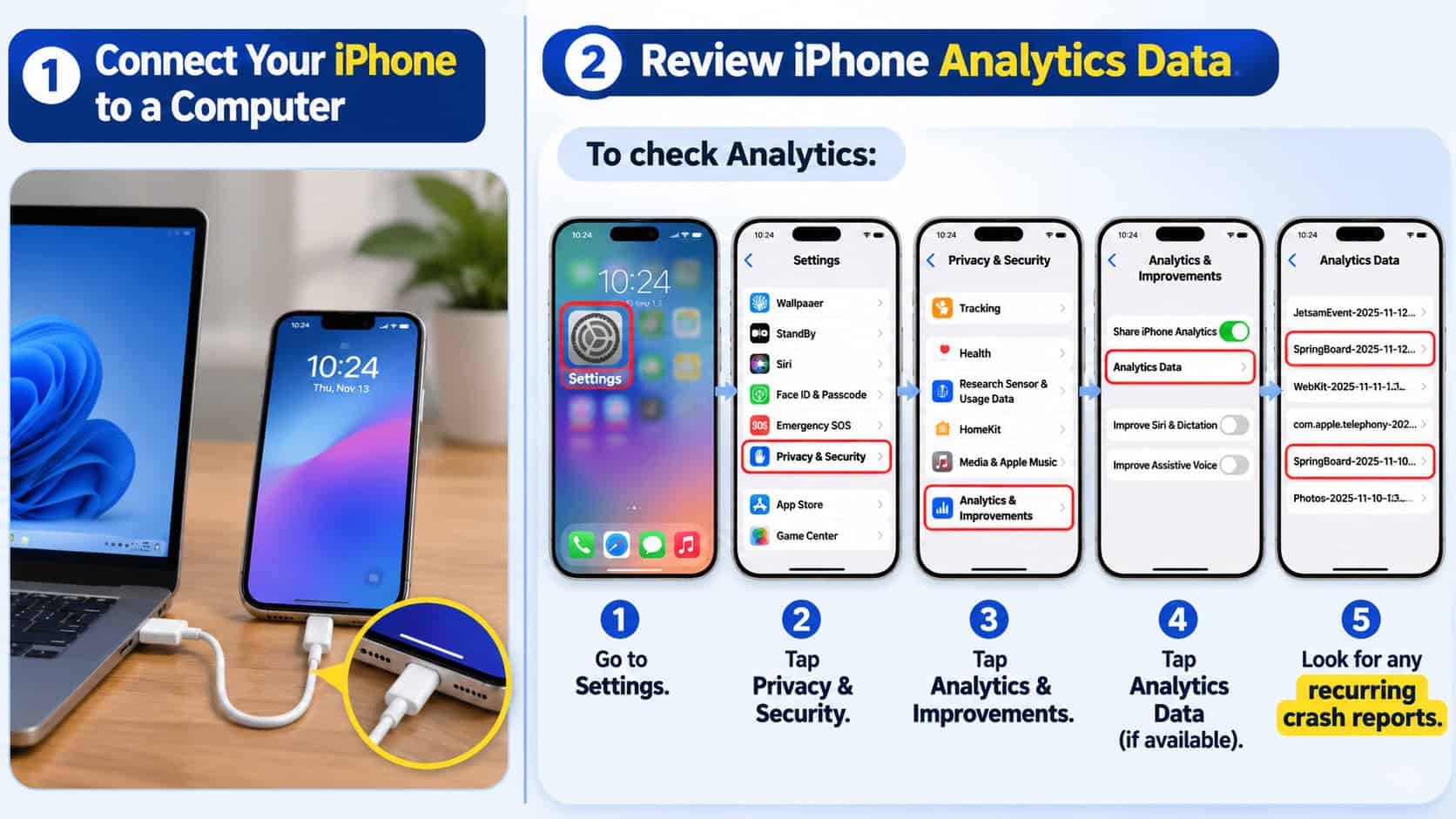
Your iPhone can produce analytics logs. These logs will show you certain events that have happened on your iPhone such as apps crashing. This can help you identify if there are any recurring issues. However, this can require technical knowledge to understand.
This is best for those who are experiencing constant crashes or unexpected issues.
To check Analytics:
- Go to Settings.
- Tap Privacy & Security.
- Tap Analytics & Improvements.
- Tap Analytics Data if available.
- Look for any recurring crash reports.
Having one crash report doesn’t necessarily mean there is a hardware issue. Apps can crash due to software issues, compatibility issues or just an error.
Having unknown file names in your logs doesn’t mean there is a major issue with your iPhone. If you’re seeing a lot of crashes for the same app, try updating it.
Analytics logs are technical data and not a full diagnostic. If you’re unsure what they mean, pass the relevant symptoms onto Apple Support.
Also Read: Reset iPhone Without Password: A Practical, Responsible Recovery Plan
5. Connect Your iPhone to a Computer
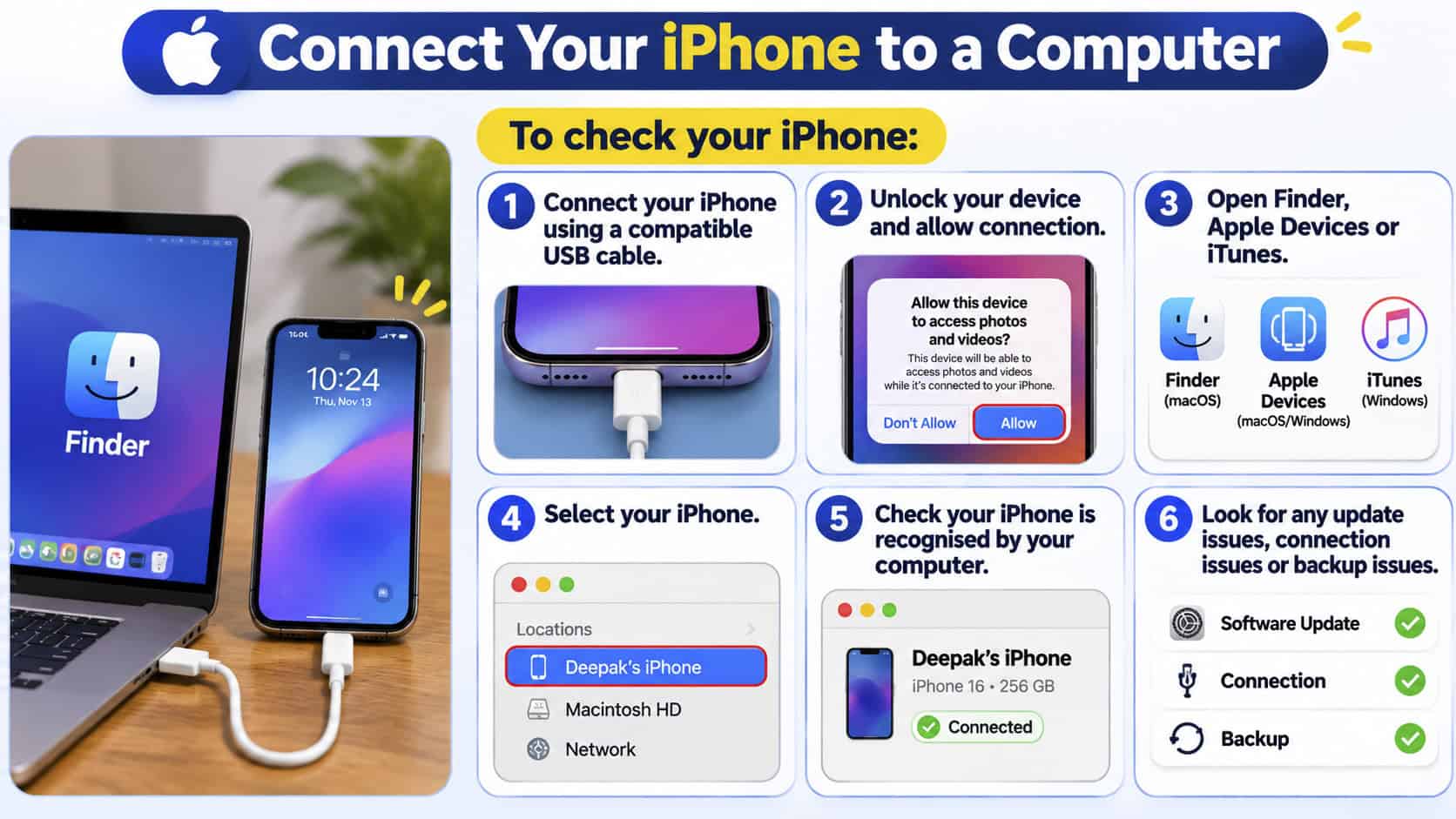
Sometimes issues can be caused by iOS itself. Connecting your iPhone to a computer can help you identify any software errors, failed updates, issues with backups or restoring your device.
If you’re using a Mac with a compatible macOS version, you can use Finder. If you’re using a Windows computer, you can use Apple Devices or iTunes.
To check your iPhone:
- Connect your iPhone using a compatible USB cable.
- Unlock your device and allow connection.
- Open Finder, Apple Devices or iTunes.
- Select your iPhone.
- Check your iPhone is recognised by your computer.
- Look for any update issues, connection issues or backup issues.
If your iPhone keeps losing connection, try a different cable/USB port. Also check your computer has updated software.
Updating iOS may help with some software issues. Although restoring your Apple iPhone is not advisable. Returning your iPhone to factory settings allows data loss, therefore always make sure to backup your phone and understand the procedure before restoring.
The use of personal computers does not allow for complete hardware diagnosis but can assist in solving connectivity problems and possible software defects.
Also Read: 7 Reasons Why Can’t I Download Apps on My iPhone and How to Fix the Issue
6. Test Individual Hardware Components Manually
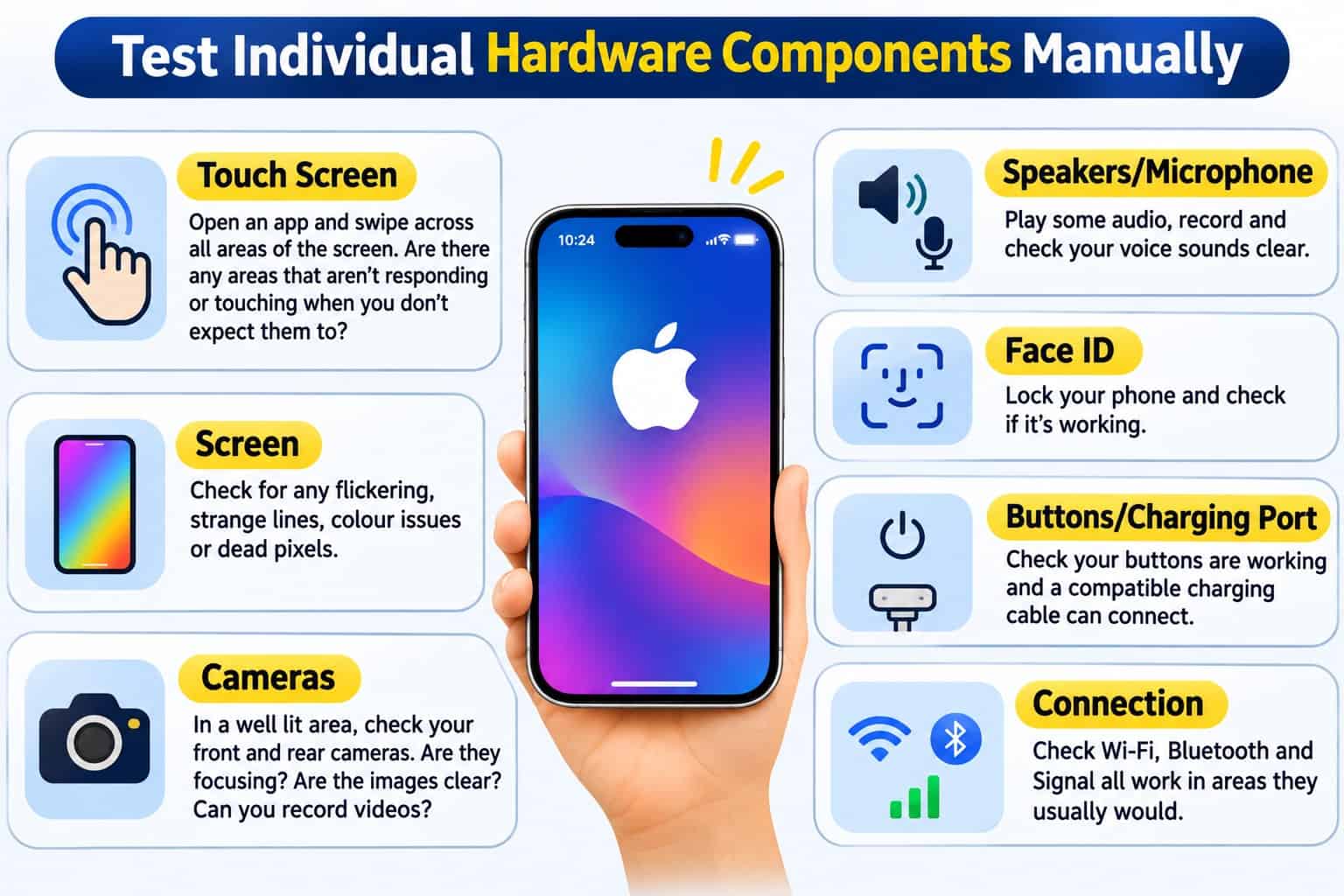
Not all iPhone issues will require special software. By carefully checking your iPhone, you can identify any obvious issues and decide if you need to have it professionally diagnosed.
Start by checking the areas you use most. If you’re checking a second hand iPhone, this is a great place to start.
Quick check list:
- Touch Screen – Open an app and swipe across all areas of the screen. Are there any areas that aren’t responding or touching when you don’t expect them to?
- Screen – Check for any flickering, strange lines, colour issues or dead pixels.
- Cameras – In a well lit area, check your front and rear cameras. Are they focusing? Are the images clear? Can you record videos?
- Speakers/Microphone – Play some audio, record and check your voice sounds clear.
- Face ID – Lock your phone and check if it’s working.
- Buttons/charging port – Check your buttons are working and a compatible charging cable can connect.
- Connection – Check Wi-Fi, Bluetooth and Signal all work in areas they usually would.
Take off any cases or screen protectors that could affect your touch screen. Wipe your cameras and carefully check your charging port. Don’t stick anything sharp in or use any liquids.
This can be really useful if you’re buying a second hand iPhone. However, just because a component works in a short test does not mean it will work reliably. If you’re noticing any ongoing issues with your iPhone, get it tested by a professional.
What Should You Do After Running an iPhone Diagnostic Test?
After performing your checks you’ll be able to determine what to do.
If it looks like an issue with the software then try updating your iOS, restarting your device or updating the app. If you are experiencing issues with low battery capacity and/or suggestions to service your battery please visit a qualified technician to see if you need to replace your battery.
If you think there may be hardware issues (Face ID, Cameras, Charging & Unexpected Shutdown) please contact Apple or an Apple Authorised Service Provider. Having your device checked by a professional will help identify if your device can be fixed.
Before doing anything ensure that your important data is backed up. Never give your Apple Account password to an unverified service provider.
Conclusion
Knowing how to run diagnostic tests on your iPhone can help you save time, identify potential issues and avoid spending money on repairs. There are a number of ways you can run diagnostics; checking battery health, looking at analytics, using Apple’s diagnostic tools and manually checking hardware.
None of the checks will guarantee all the components are working perfectly. Start with the issues you’re experiencing and use the correct diagnostic option. If the issue is still occurring, get it checked by a professional. Doing a little troubleshooting now can help you make a smart decision in the future.