 Gearfuse Technology, Science, Culture & More
The frustration of forgetting your iPhone passcode can happen to anyone. You might feel locked out of your digital life and very important photos. A lot of users try to reset their phones, but hit the iCloud Activation Lock. This common mistake happens because people do not understand the security setup.
You need a clear plan to regain access without causing more technical trouble. Official Apple methods work well, but some steps feel very difficult for beginners. Yet, using a reliable tool like Dr.Fone iPhone Unlock provides a much simpler workflow. This guide helps you choose the right path for your specific device situation.

Part 1. Reset vs Unlock – Understanding the Difference Before You Erase
When you reset iPhone without password, it just erases all settings and stored data. Yet, unlocking implies regaining full access to use the device again. Apple ID or Activation Lock may still appear even after a proper reset process. The table below compares both actions for better understanding before you start:
| Feature | Reset iPhone | Unlock iPhone |
| Main Purpose | Erase all data and restore factory settings | Remove the passcode to regain device access |
| Data Status | All data is permanently deleted | Data remains gets removed as well |
| Apple ID Requirement | May require an Apple ID after reset | Usually does not require an Apple ID |
| When to Use | When the passcode is forgotten, and erasing is acceptable | When you only need screen access |
| Risk Level | High if Activation Lock appears | Lower, but it depends on the situation |
Part 2. What to Do If iCloud Activation Lock Appears After a Reset
The iCloud Activation Lock is a very strong layer of security for users. This feature connects your physical iPhone to a specific personal Apple ID. It protects your device from unknown use, even after a complete factory reset process. To continue setup, you must sign in with the same Apple ID previously used. If you forget those credentials, visit Apple’s official recovery page to verify your ownership.
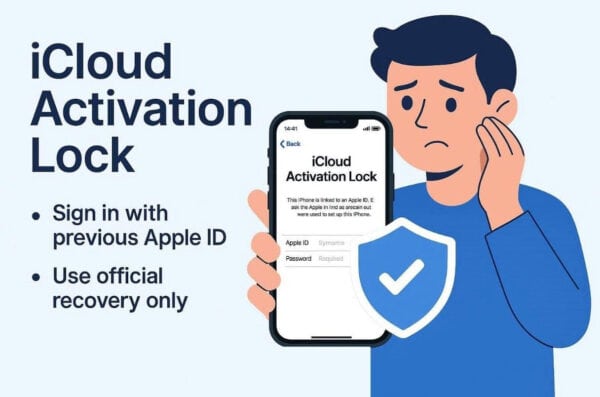
Moreover, avoid using unverified tools that claim instant bypass, as they pose high security risks. Instead, stick to Apple’s methods or guided solutions that follow legal unlocking procedures. Plus, learning how to unlock an iPhone screen safely helps prevent future lockouts. Once you confirm the account and finish verification, you can move forward again.
Part 3. How to Reset an iPhone Without a Password via Official Apple Methods
Apple provides several ways to reset an iPhone without a password. These official methods ensure your data is handled securely and protect your account access. You can use either your computer or another Apple device to start this task. So, this part covers 2 methods to help users fix this issue:
Method 1. Reset iPhone via iCloud Find Devices
The “Find My” service allows you to erase your device from a distance. You only need another Apple device or a computer to sign in to iCloud. Yet, the device must have an active internet connection for effortless working. You also still need your original Apple ID and password to proceed further. Anyhow, go through the steps below to reset your device through this approach:
Step 1. Visit the “iCloud Find Devices” page and log in using your Apple ID details. Subsequently, access the “All Devices” list and choose your device.
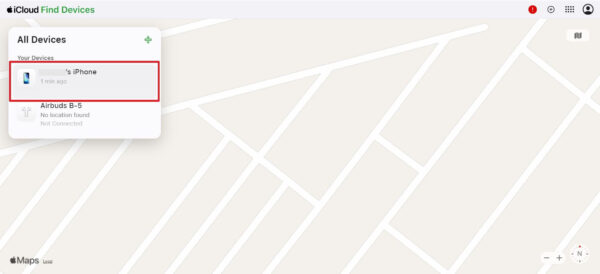
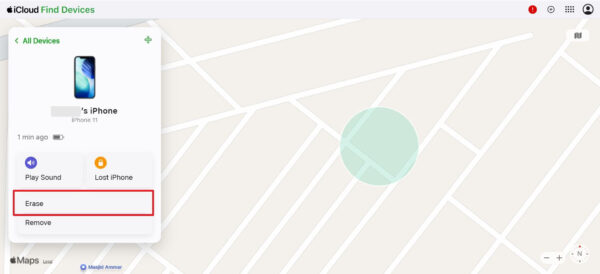
Step 2. As you select the correct device, click the “Erase” option to finish the task.
Method 2. Use iTunes/Finder to Reset or Restore iPhone
These particular programs are also a traditional way to reset and restore your iPhone. This process is very helpful if you do not have a Wi-Fi connection. It allows you to wipe the phone and learn how to unlock an iPhone screen. One major limitation is that you must have a compatible USB data cable. So, follow these specific steps to restore your device using a desktop computer:
Step 1. Turn off your iPhone, then connect it to your computer and open iTunes or Finder. Next, place your device into Recovery Mode based on your model:
- iPhone 8 or Later: Once press and release “Volume Up,” then “Volume Down.” After that, hold the “Side” button until the Recovery Mode screen appears.
- iPhone 7 / 7 Plus: Press the “Side” and “Volume Down” buttons together for a few seconds until you see the Recovery Mode screen.
- iPhone 6s or Earlier: Hold the “Home” and “Top (or Side)” buttons at the same time until Recovery Mode appears.

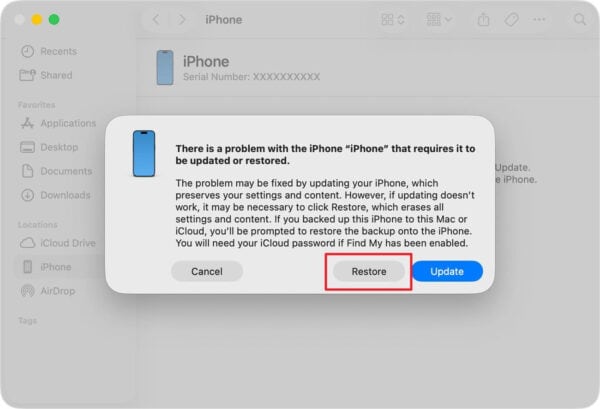
Step 2. Once your smartphone is detected in the program, click the “Restore” option and follow the on-screen instructions to remove the passcode.
Part 4. Using Dr.Fone for a Guided iPhone Unlock and Recovery Workflow
Many users find Apple’s official recovery steps confusing and time-consuming when locked out of their device. Dr.Fone – Screen Unlock (iOS) provides a faster way to unlock an iPhone screen by removing 4-digit or 6-digit passcodes, Face ID, and Touch ID locks. It also supports models from iPhone 5S to iPhone 17 and works smoothly with iOS 26 and earlier versions.
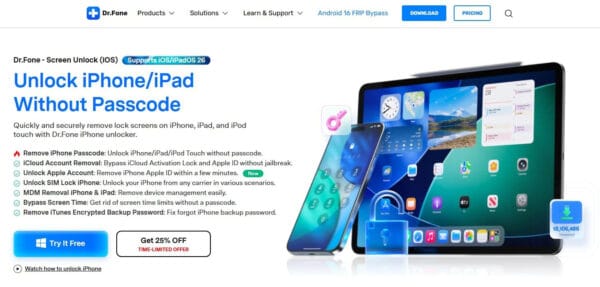
Besides screen unlocking, the tool also supports iCloud activation lock removal for devices stuck on the Activation Lock screen after a reset. It simplifies the technical process with guided instructions and live progress updates. Users can also remove Apple ID restrictions within minutes, making it a practical all-in-one solution for regaining full access.
Key Features
- MDM Removal: Delete mobile device management profiles without losing any of your data.
- SIM Unlock: Unlock your iPhone from any carrier to use different network providers globally.
- Data Security: Operates locally to ensure 100% data protection during unlocking processes.
Step-by-Step Guide to Use Dr.Fone for a Guided iPhone Lock Removal
Dr.Fone iPhone Unlock provides a guided process that makes removing an iPhone passcode simple and stress-free. It handles the technical steps automatically to prevent errors. Follow the steps below to unlock your iPhone screen quickly and safely.
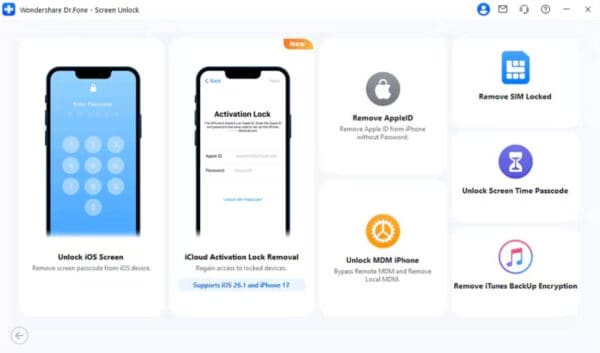
Step 1. Choose iPhone Screen Lock Removal Tool
As you select “Screen Unlock” from the “Toolbox” tab, click “iOS” as your device type. On the upcoming display, choose the “Unlock iPhone Screen” option.
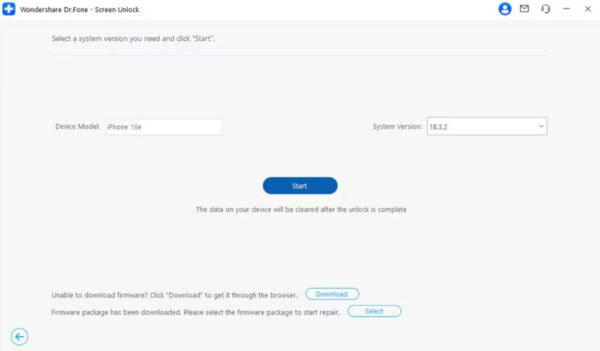
Step 2. Connect Your iPhone for Unlocking
Attach your phone to the PC and press the “Start” button. The tool will then detect and show all the necessary details of your iPhone, like version and model. After that, confirm your device details and click the “Start” button.
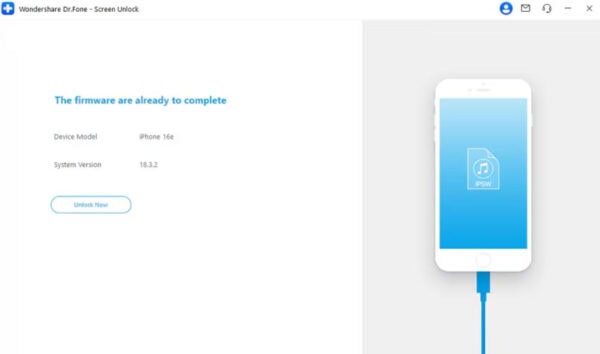
Step 3. Unlock Your iPhone Instantly via Dr.Fone
Dr.Fone will download and verify the necessary drivers required to remove the passcode from your iPhone. Once done, press the “Unlock Now” button to initiate the process and get rid of your locked screen.
Part 5. How to Handle Activation Lock and Other Post‑Reset Issues
Even after you reset your iPhone without a password, some issues may still appear during setup. Many times, Activation Lock is the most common post-reset challenge. Other problems include Apple ID errors or setup delays. Understanding these common complications helps you take quick recovery actions. The table below lists common issues and their most effective solutions:
| Post‑Reset Issue | Why It Happens | What You Should Do |
| Activation Lock Appears | Apple ID is still linked to the device | Sign in with your original Apple ID |
| Apple ID Password Forgotten | Account credentials not remembered | Use the Apple account recovery process |
| Device Not Activating | Internet or server connection issues | Check Wi-Fi and try again later |
| Setup Freezes | Incomplete restore or software glitch | Restart the device and repeat the setup |
| SIM Not Recognized | Carrier lock or SIM issue | Reinsert the SIM or contact the carrier |
Conclusion
In summary, resetting your device is a very serious task that requires a smart plan. You must always prepare for the Activation Lock before you begin the process. Moreover, official Apple routes are very secure, but they can be hard for beginners. A responsible recovery plan helps you avoid many common and stressful setup mistakes. If you need a faster and more guided experience, try Dr.Fone iPhone unlock.