 Gearfuse Technology, Science, Culture & More
There’s nothing quite as frustrating as seeing “No Internet Connection” on your phone just when you need it the most. Be it a hiccup with your Wi-Fi, a mobile data issue, or some router drama, the silver lining is that it can be fixed! Let’s explore the possible causes and some handy solutions to get your connection back up and running in no time.
What Are Some Common Reasons Your Phone Shows “No Internet Connection”?
Wi-Fi Glitches
Every now and then, if you find your phone connected to a Wi-Fi network, but the internet just won’t cooperate. This is due to a router issue, a weak signal, or simply too many devices hogging the same network.
Mobile Data Problems
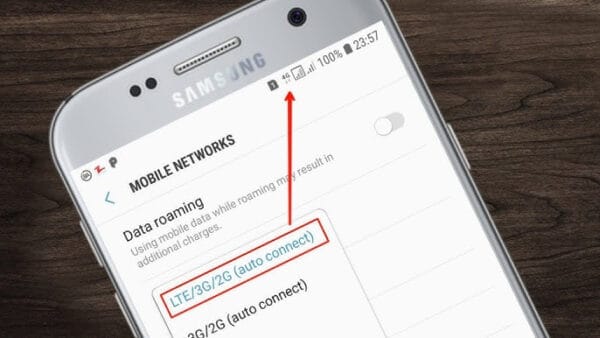
When you’re depending on mobile data, the hiccup could be with your carrier. Things like weak signal coverage, temporary outages, or even incorrect network settings can leave you with a dead connection, even if your phone shows a good signal.
Codes To Check If A Phone Is Being Tracked Or Hacked
Router or ISP Issues
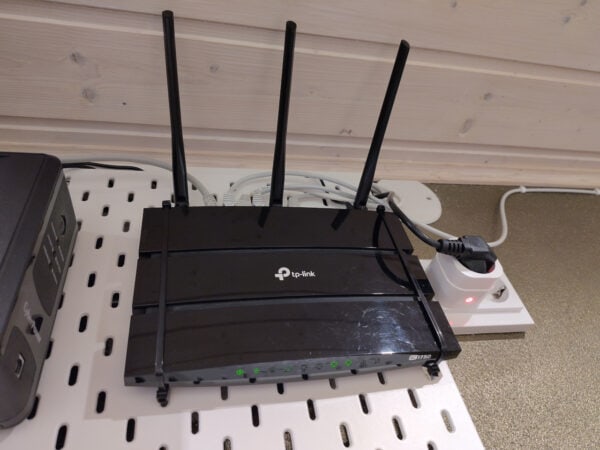
Sometimes, your internet service provider (ISP) could be having an outage, or your router might just need a quick reboot. Often, the issue isn’t with your phone at all, it’s the network behind it that’s causing the trouble.
Software And Settings Errors

Let’s face it, phones aren’t flawless. A bug from a recent update, outdated software, or misconfigured network settings can leave your device scratching its head about its connection status. Even something as simple as having airplane mode turned on can block your access.
How To Tell If Someone’s Phone Is Off Or Dead
SIM Card or Hardware Issues
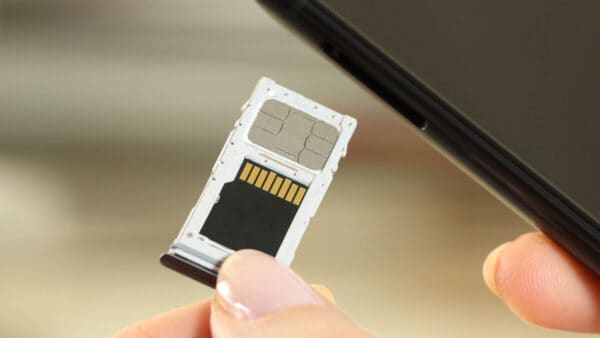
A loose or damaged SIM card could be the reason your device isn’t connecting to mobile networks. In rare cases, there could be internal hardware issues with the phone’s antenna that are causing the problem.
A Complete Step-By-Step Guide To Fix Your Wifi
- Toggle your Wi-Fi off and then back on.
- Switch Airplane Mode on and then off again.
- Restart the app or browser you’re currently using.
- Reboot your phone or computer.
Power cycle (The Most Common Fix)
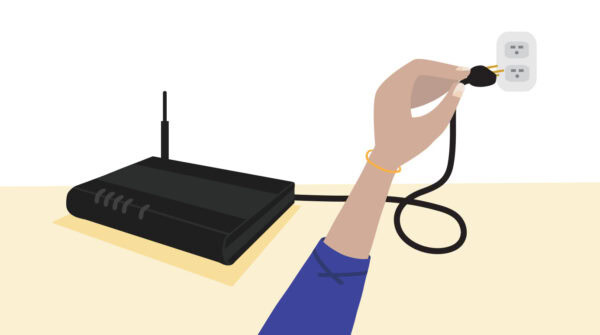
To reset your internet connection, start by unplugging the modem from the power source. Give it about 30 seconds before plugging it back in.
- Once the modem is powered up, wait for all the lights to stabilize.
- If you have a separate router, unplug it as well. Wait for 10 to 20 seconds, then plug it back in.
- Keep an eye on the router’s LEDs until they indicate everything is back to normal, and then reconnect your device.
Why does this work? It helps clear out temporary glitches and prompts your devices to re-establish their connections.
How Many Times Does A Phone Ring Before Voicemail?
Isolate The problem (device vs network)
- If you’re having trouble, try using a different device, like a friend’s phone or laptop. If those work, then the issue is likely with your device.
- If nothing seems to work, it could be a problem with your network, router, modem, or even your Internet Service Provider.
- And if your wired Ethernet connection is fine but Wi-Fi isn’t working, then there might be an issue with your router’s wireless settings.
Quick Device Fixes (phone & laptop)
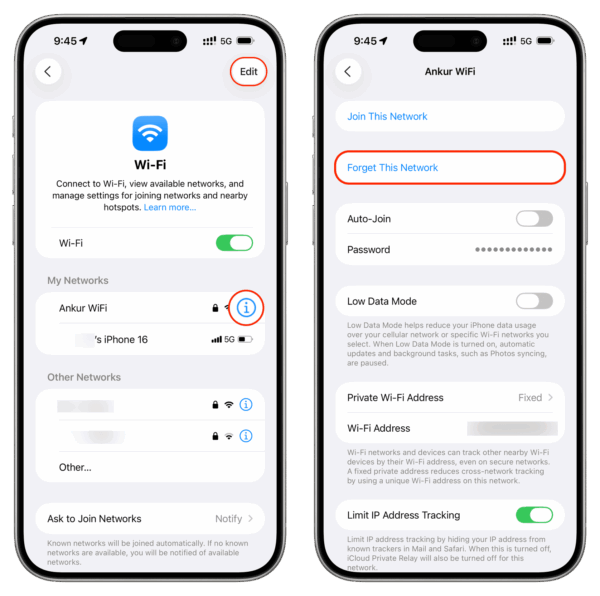
If you’re having trouble with your connection, try these steps: First, forget the network by going to Settings → Wi-Fi → tap on the network → Forget, then reconnect and enter your password again.
- Make sure to disable any VPN or Proxy, as they can sometimes interfere with your connection.
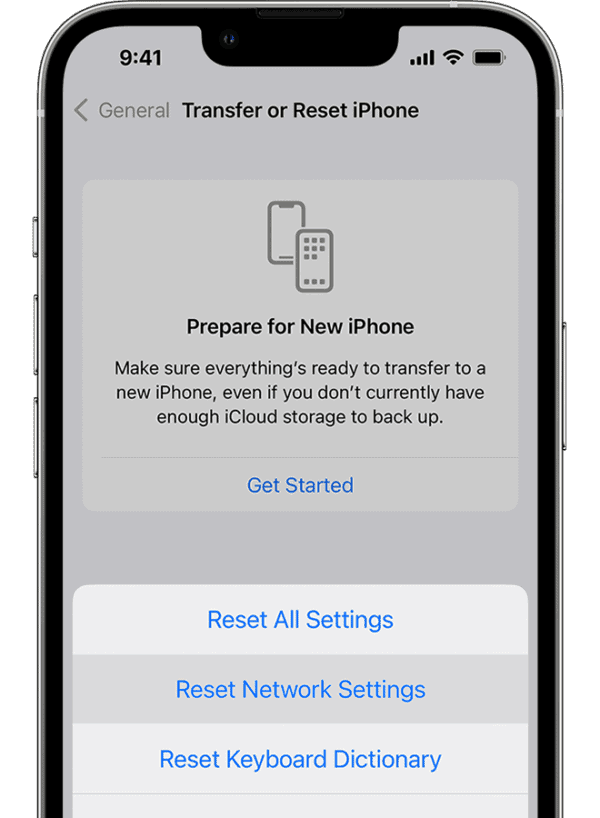
If that doesn’t work, you need to reset your network settings:
- For Android: Head to Settings → System → Reset options → and select Reset Wi-Fi, mobile & Bluetooth (the exact path may vary depending on your device).
- For iPhone: Go to Settings → General → Transfer or Reset iPhone → Reset → and choose Reset Network Settings.
Also, don’t forget to update your operating system and apps, as updates often fix bugs.
- If you’re using Windows, you can run the Network Troubleshooter by going to Settings → Network & Internet → Troubleshoot, or you can use the Command Prompt to run a network diagnostic.
Router & Modem Checks And Fixes
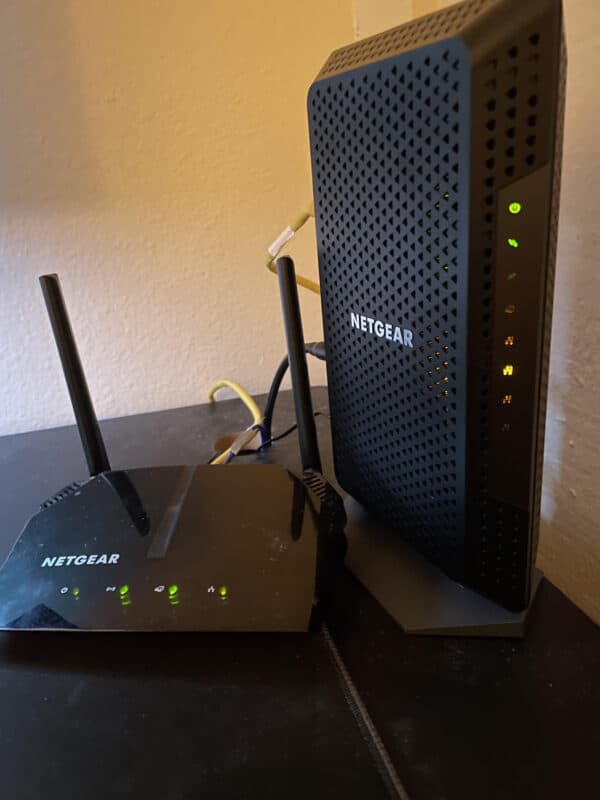
To troubleshoot your internet connection, start by checking the cables: make sure the power and WAN (Ethernet/coax) are securely plugged in.
Next, take a look at the lights on your modem/router. If you see no internet connection or any red lights, there might be an issue with your ISP or modem.
Log in to your router’s admin page (common addresses include 192.168.0.1, 192.168.1.1, or 10.0.0.1 — you can usually find this on a sticker). Here are some steps you can try once you’re in:
- Reboot the router through the user interface.
- Update the firmware.
- Ensure DHCP is enabled so that devices can receive IP addresses.
- Check how many devices are connected — are you at your limit?
- Disable MAC filtering or add your device to the allowed list.
- Look into QoS or bandwidth rules; a misconfigured setting could be slowing down your traffic.
- Make sure your security is set to WPA2 or WPA3 (avoid open networks).
If all else doesn’t work, you can do a factory reset as a last resort: just press the reset pin for 10–15 seconds, then set up your SSID and password again.
What are the Best Mobile for Gaming?
Wi-Fi Signal & Interference Fixes
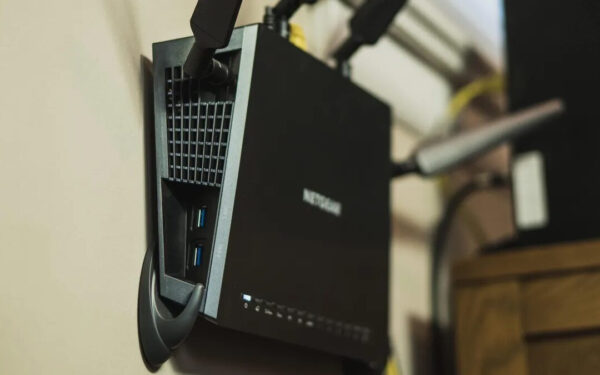
To get the best Wi-Fi signal, try moving your router to a higher, more central spot—steer clear of cupboards and corners.
Also, keep it away from microwaves, cordless phones, baby monitors, and any large metal objects that could interfere with the signal.
For faster speeds and less interference, use the 5 GHz band, but remember it has a shorter range. If you need a longer reach, stick with the 2.4 GHz band.
When using 2.4 GHz, choose channels 1, 6, or 11 to minimize overlap. You can change the channel through your router’s user interface.
If you’re experiencing congestion, consider reducing the channel width to 20 MHz on the 2.4 GHz band
Firmware, drivers & updates
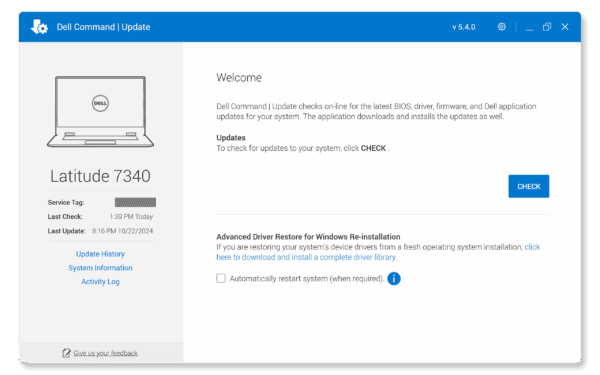
- First up, router firmware: just log in and update it, this can resolve a lot of stability issues.
- For your device’s Wi-Fi driver on Windows, you can easily update the adapter driver through Device Manager. And if you’re on a phone, make sure your operating system is up to date.
- Now, let’s talk about mesh systems, extenders, and coverage solutions. If you have a large home, it’s best to go for a mesh Wi-Fi system instead of those budget extenders.
- If you do opt for an extender, make sure to place it where the router’s signal is still strong, ideally around the midpoint.
And a quick tip to avoid double NAT: if both your ISP device and your router are doing NAT, switch your modem to bridge mode.
Conclusion
Seeing that dreaded “No Internet Connection” message on your phone can be super frustrating, but the solution is usually easier than you think. A quick restart, reconnecting to Wi-Fi, checking your router, or updating your settings can often resolve most issues in just a few minutes. Just follow these simple steps, and you’ll be back online in no time!