 Gearfuse Technology, Science, Culture & More
OnlyFans subscriptions don’t cancel themselves. Unless you manually turn off auto-renew, the platform will keep charging your saved payment method every 30 days (or whatever billing cycle the creator has set), even if you haven’t opened the app in months. If you’ve decided it’s time to stop a subscription, the good news is that the process only takes a couple of minutes, whether you’re on a laptop or a phone.
This guide walks through exactly how to cancel an OnlyFans subscription on desktop, mobile browser, and through the Subscriptions dashboard, plus what happens to your access afterward, whether refunds are possible, and how to fix the most common cancellation glitches people run into.
Before You Cancel: What Actually Happens
It helps to understand what “cancelling” actually does before you go looking for the button. Cancelling a subscription on OnlyFans doesn’t remove you from a creator’s page immediately or erase your chat history. It simply switches off auto-renewal. You’ll keep full access to that creator’s content until the current billing period runs out, and only then will the subscription actually end.
It’s also worth knowing that OnlyFans generally does not offer partial refunds for time you don’t use after cancelling. If you paid for a 30-day cycle and cancel on day 5, you keep access for the remaining 25 days, but you won’t get money back for cancelling early. Free subscriptions work differently since there’s no payment to stop; in that case, “cancelling” really just means unsubscribing or unfollowing, which you can do instantly with no billing implications.
How to Cancel OnlyFans Subscription on Desktop (Web Browser)
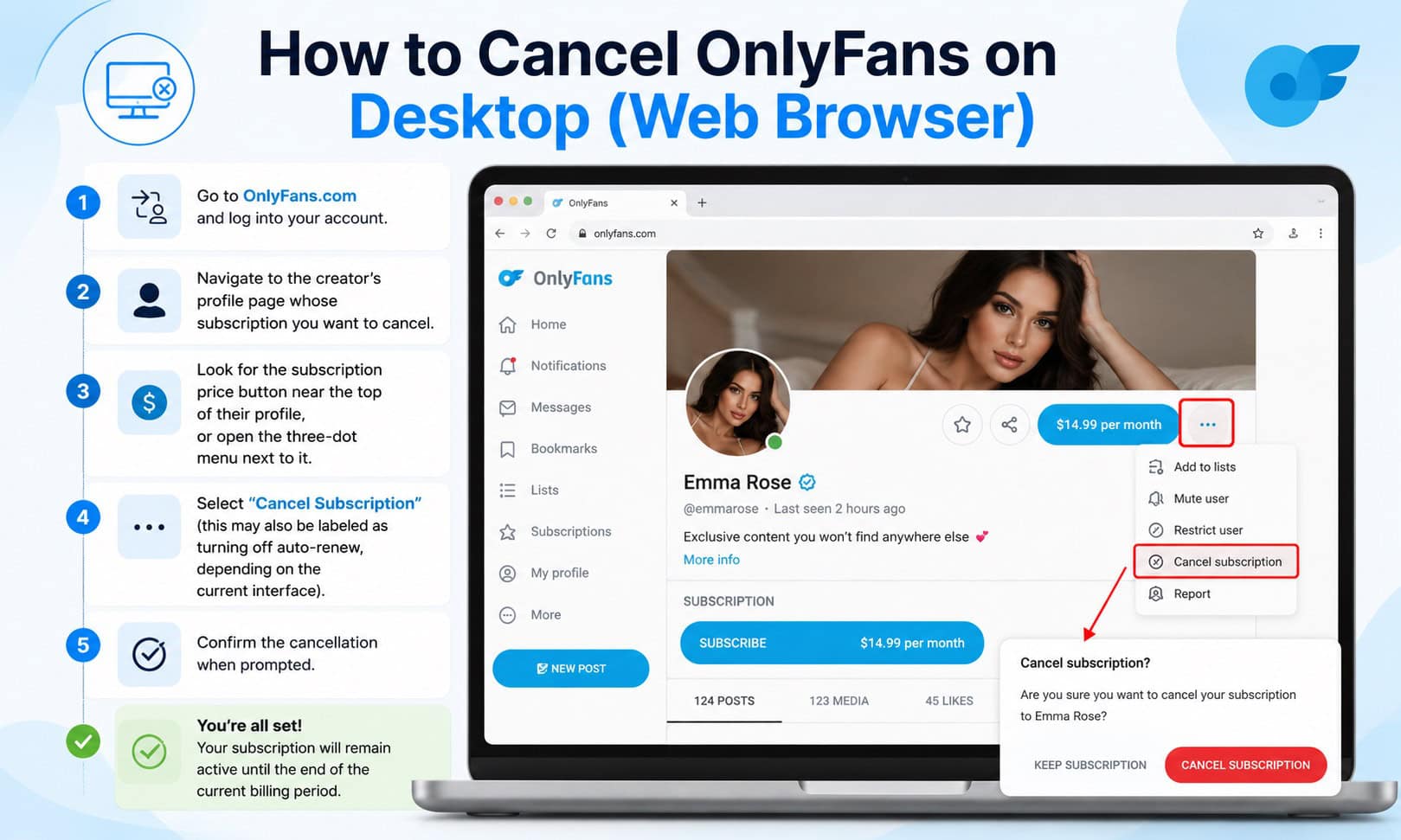
Cancelling from a desktop or laptop browser is the most straightforward method. Here’s the full process:
- Go to OnlyFans.com and log into your account.
- Navigate to the creator’s profile page whose subscription you want to cancel.
- Look for the subscription price button near the top of their profile, or open the three-dot menu next to it.
- Select “Cancel Subscription” (this may also be labeled as turning off auto-renew, depending on the current interface).
- Confirm the cancellation when prompted.
Once confirmed, the page will usually show that auto-renew is off, along with the date your current access period ends.
If you’d rather not hunt down individual creator pages, there’s a faster route: open your account settings and go to the Subscriptions section. This shows every active subscription in one list, and you can cancel any of them directly from there without visiting each profile.
How To Get Free Onlyfans Without Payment
How to Cancel OnlyFans on Mobile (iPhone or Android)
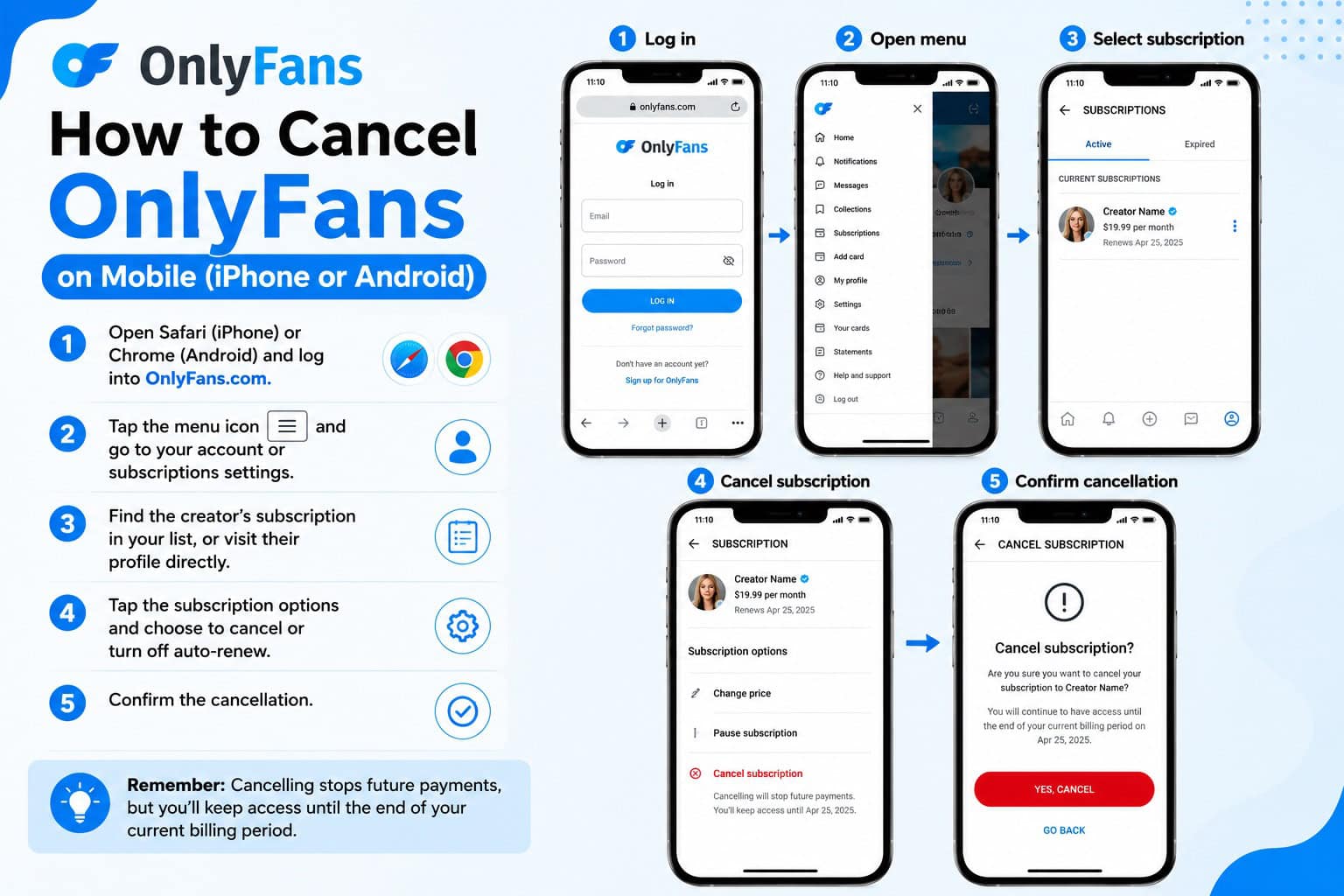
OnlyFans doesn’t have an official app listed in the Apple App Store or Google Play Store, so cancelling on mobile means using your phone’s browser rather than a dedicated app. The steps are nearly identical to desktop:
- Open Safari (iPhone) or Chrome (Android) and log into OnlyFans.com.
- Tap the menu icon and go to your account or subscriptions settings.
- Find the creator’s subscription in your list, or visit their profile directly.
- Tap the subscription options and choose to cancel or turn off auto-renew.
- Confirm the cancellation.
If you cancel subscriptions often, it’s worth adding OnlyFans to your phone’s home screen as a shortcut. On iPhone, tap the Share icon in Safari and choose “Add to Home Screen”; on Android, use the browser menu and select “Add to Home screen.” This gives you a one-tap launch point without needing an actual app.
How to Cancel Multiple Subscriptions at Once
If you’re subscribed to several creators and want to clean house, the Subscriptions dashboard (found under your account settings, on both desktop and mobile browser) lists everything you’re currently paying for in one place. From there, you can go down the list and cancel each one individually; OnlyFans doesn’t currently offer a single “cancel all” button, so you’ll need to tap through each subscription separately.
While you’re in that dashboard, it’s a good moment to check renewal prices and dates for subscriptions you’re keeping. Creators can change their subscription price, and OnlyFans will notify you before a price increase takes effect, giving you a window to cancel if the new price isn’t worth it to you.
How to Stop OnlyFans From Charging You Again
The auto-renew toggle is the actual switch that stops future charges. As long as it’s off, OnlyFans will not bill your card again once the current period ends. The key detail is timing: you need to cancel before your renewal date, not after. If you cancel the same day your subscription renews, you may already have been charged for the new cycle.
You can check your next billing date on the same subscription details screen where you cancel. It’s worth checking this a day or two ahead of when you expect to be charged, especially if you’re trying to time a cancellation to avoid one more payment.
How To Find Out if Somebody Has an OnlyFans Account
Can You Get a Refund After Cancelling?
OnlyFans’ standard policy is that subscription payments are non-refundable once processed, and cancelling doesn’t automatically trigger a refund for the current billing period. That said, refunds aren’t entirely off the table in specific situations, such as a duplicate charge, a payment made in error, or unauthorized access to your account.
If you believe you were charged incorrectly, you can submit a request through OnlyFans support by describing the issue and the transaction in question. Response times and outcomes vary, and most day-to-day “I forgot to cancel” situations won’t qualify, so it’s best to treat cancelling on time as the real safeguard rather than counting on a refund afterward.
Common Cancellation Problems and How to Fix Them
“I cancelled, but I was still charged.”
This usually comes down to timing. If the cancellation happened after the renewal had already processed, that charge was for the cycle already in progress, and the cancellation will simply prevent the next one.
“My subscription still shows as active after I cancelled.”
This is often a display or cache issue rather than a billing one. Log out and back in, or refresh the page, and check the subscription status again. Remember that “active” simply means your access period hasn’t ended yet; auto-renew being off is the part that matters.
“I removed my card, but the subscription is still there.”
Removing a payment method can prevent a future charge from going through, but it doesn’t cleanly cancel a subscription and can lead to a failed-payment status rather than a proper cancellation. It’s more reliable to cancel the subscription directly and leave your payment method in place until the cancellation is confirmed.
“I blocked the creator, but I’m still being billed.”
Blocking a creator restricts their ability to message or see you, but it’s a separate action from cancelling a subscription. The two need to be done independently; blocking alone will not stop a renewal.
Is OnlyFans Illegal? Exploring the Legalities of the Platform
Cancelling Subscriptions vs. Deleting Your Account
Cancelling a subscription only affects that one creator; your overall OnlyFans account, messages, and any other active subscriptions stay untouched. Deleting your account is a separate, more permanent step that closes your profile entirely and cancels everything at once. If your goal is simply to stop paying one specific creator, cancelling the subscription is the right move rather than deleting the whole account.
Frequently Asked Questions
Does cancelling my OnlyFans subscription delete my chat history?
No. Cancelling stops future billing but doesn’t erase your previous messages with that creator, at least while your account remains active.
Will the creator know I unsubscribed?
Creators can generally see their subscriber list and its changes, so they may notice you’re no longer subscribed, but OnlyFans doesn’t send them a specific “this user cancelled” alert.
Can I resubscribe after cancelling?
Yes. You can resubscribe to a creator at any time after cancelling, though you’ll be charged their current subscription price, which may differ from what you paid before.
How long does cancellation take to process?
The cancellation itself is instant, turning off auto-renew right away. Your access simply continues until the existing billing period ends.
Does cancelling remove me from the creator’s follower list?
Once your access period ends, you typically lose subscriber-only access and drop off their active subscriber list, though you may still show as a follower depending on account settings.
What if I can’t log in to cancel?
Use the “Forgot password” option on the OnlyFans login page to reset your credentials first; you’ll need account access to cancel a subscription, since there’s no cancellation path outside the account itself.
Does OnlyFans send a cancellation confirmation?
The interface confirms the cancellation on-screen immediately, and your subscription status will show auto-renew as off; email confirmations may also be sent depending on your notification settings.
Final Thoughts
Cancelling an OnlyFans subscription comes down to the same basic steps whether you’re on desktop or mobile: find the subscription, turn off auto-renew, and confirm. The part most people get wrong is timing, so cancel a day or two before your renewal date if you want to avoid one more charge. And if you’re managing several subscriptions, the Subscriptions dashboard in your account settings is the quickest way to review and cancel them all in one place.