 Gearfuse Technology, Science, Culture & More
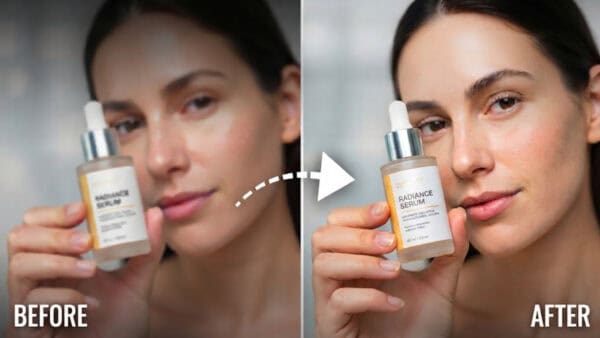
Low resolution doesn’t just look bad. It costs money. A blurry product label makes people swipe. A soft demo gets a lower thumb-stop rate. A testimonial with compression artifacts gets less watch time.
The algorithm reads that as disinterest and shows it to fewer people.
Suddenly you’re paying more to reach the same audience because of a technical problem, not a creative one. Reshooting feels like the responsible fix, but it’s the most expensive way to solve a last-mile issue. The footage isn’t wrong. The finish is.
Why Your Archive Looks Soft Now
Resolution standards didn’t just go up. How platforms compress video changed too.
When you upload to TikTok, Reels, YouTube Shorts, or even Shopify’s product page, the platform re-encodes your file. If you started with a soft source — say, a clip that was already screen-recorded, downloaded from Instagram, or exported twice in CapCut — that second compression destroys what little texture was left.
What disappears first is exactly what sells products:
- Stitching and weave on apparel
- Pebble and hardware detail on bags and shoes
- Label text and ingredient lists
- Skin texture in beauty demos that makes a result believable
Customers don’t think “this is 720p.” They think “I can’t see it clearly enough to trust it.” That hesitation is where performance drops. The fix isn’t more shoots. It’s getting more out of the takes you already have that nailed the message.
The Anti-Reshoot Workflow: Clean, Rebuild, Reformat
Think of upgrading as restoration, not upscaling. You wouldn’t enlarge a dusty photo before wiping the dust off. Same with video.
Here’s a lightweight system that works for a lean team in a single afternoon.
1. Clean Out the Time Stamps
Low-res footage is usually carrying baggage that makes it unusable even if you make it sharp. Old promos.
Look at any archive clip from the last two years and you’ll probably spot at least one of these still in there:
- “Sale ends Sunday!” from a 2025 campaign
- A watermark from a free editor
- Auto-captions with wrong words
- An old handle, old logo, old packaging
- A date, a location tag, a personal phone number on a label
When you enhance a video that still has old sale tags, watermarks, or random clutter in it, the enhancer makes that clutter HD too. So, clean first, enhance second.
Zawa can help you remove text from video without that blurry smear most free tools leave behind. It doesn’t just cover the text — it reconstructs the background where the text was, so the frame looks like the text was never there in the first place.
You can take a Black Friday demo and turn it into an evergreen PDP clip in five minutes. Same with UGC where a creator left their old username big across the frame.
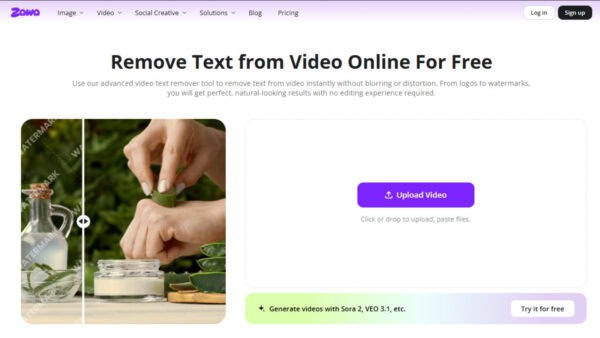
The process is simple. Drag in the file with the old sale text, wrong captions, or watermark.
Once the file is uploaded, you’ll see two modes: Auto / Manual on top. Auto is fast for logos and standard watermarks. Manual gives you more control when text sits over product texture.
You will also see three removal types: Smart/Watermark/Subtitles. For old marketing clips, pick Watermark if it’s a logo or promo tag, Subtitles if it’s burned-in captions. Brush if you need to, hit Start, and it doesn’t just blur over it — it rebuilds the background underneath so the leather, fabric, or skin continues naturally.
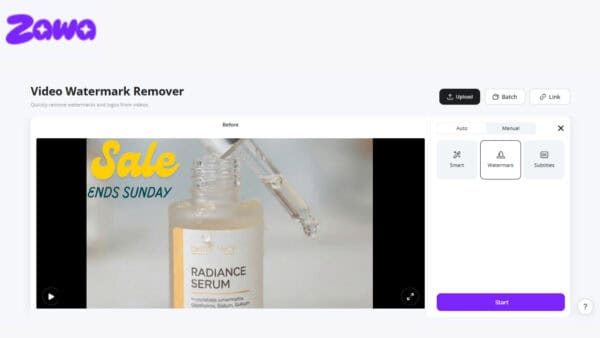
What you get is a clean master with no date stamp. That master is now evergreen. From there you can run it through the video enhancer to 1080p or 4K and cut your 9:16, 1:1, and 16:9 versions — all without that old “SALE ENDS SUNDAY” following you into next quarter.
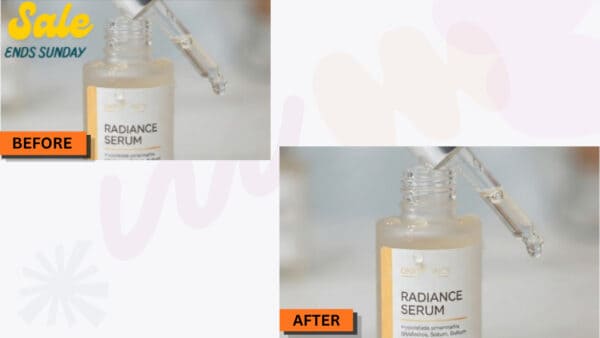
When the frame is clean, the footage instantly feels newer. You’ve removed the visual cue that says “this is from last week.”
2. Rebuild Detail Instead of Stretching Pixels
This is where most attempts fail.
Dragging a 720p clip to 200% scale in Premiere doesn’t add detail. It just makes the blur bigger. The file gets larger, not clearer. Faces look waxy, edges smear, and product texture never comes back.
What you want is reconstruction. Zawa video quality enhancer doesn’t stretch. It predicts what detail was lost to compression and rebuilds it, frame by frame. The tool restores edge contrast, stabilizes texture, and evens out color banding so the clip holds up on a big screen.
The process is upload, enhance, download. That’s it. No settings to mess with. You get before/after slider to check if the texture actually came back.
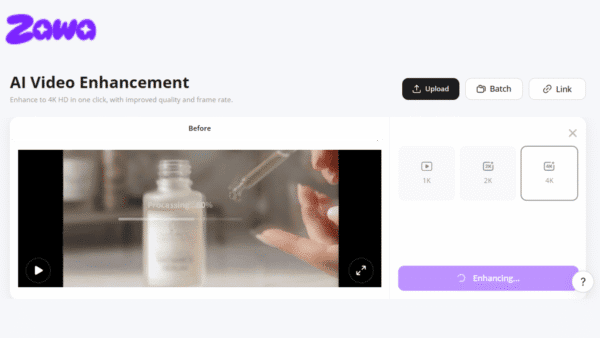
How to set it so footage stays believable:
- For UGC and talking-head founder clips: Enhance to 1080p. Keep it natural. The charm is the honesty, not hyper-sharp pores.
- For product demos, close-ups, and texture shots: Go 2K or 4K. You want grain, zipper, fabric movement to show clearly when someone full-screens it on the product page.
- For event B-roll and brand story: 1080p with light stabilization. It makes old handheld footage feel intentional again.
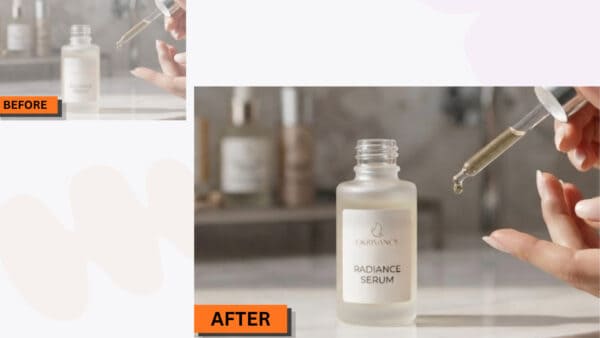
The difference after this step is immediate. Soft video suddenly looks sellable. Before it’s hazy. Label not readable, drop not crisp. After — you can read Radiance Serum, see drop hanging, see skin texture. No waxy look.
That matters. Best customers pause video. To read. To screenshot. If it holds on pause, it sells.
3. Reformat One Good Clip Into Three Placements
Most low-res pain is actually a shape problem. Your best clip is 16:9 horizontal. Ads need 9:16. Catalog needs 1:1. When you crop a soft file, it gets even softer.
The trick is order: clean, then enhance to 4K, then re-crop.
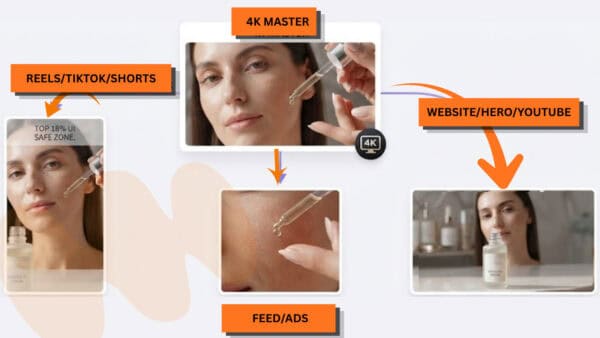
When you have a clean 4K master, you can pull a vertical 1080×1920 cut from the center and it still looks crisp. One keeper clip can then become:
- 9:16 for Reels / TikTok / Shorts: Center the action, keep product in middle third, leave top 18% empty for platform UI
- 1:1 for feed ads and collection pages: Tighten on hands + product, the actual proof moment
- 16:9 for website hero and YouTube: Keep the wider context, let the story breathe
You didn’t reshoot. You just finally gave that one good moment the pixels it needed to live everywhere.
What to Save vs. What to Let Go
Not everything in the archive deserves rescue. Be ruthless about story, generous about technical quality.
Worth upgrading:
- Real customer reactions and first-open moments
- Founder explaining why the product exists — that intent is hard to fake twice
- Product being used in real life, even if shot on a phone
- Process footage — workshop, studio, packing — that builds trust
Let it go:
- Clips where focus never actually lands on the product
- Clips where product color is completely wrong and would cause returns if fixed
- Clips where the product design has changed — enhancing old packaging confuses buyers
- Clips that are just someone reading a script with no action — better to reshoot that one properly
Most teams find the split is about 70/30 in favor of upgrading. That’s 70% of your archive you already paid for, now usable again.
The takeaway is simple: don’t rush to reshoot old content. Restore it first. Remove the old tags, bring back some lost detail, and create your three formats from one clean master. It gives old footage another shot without booking another shoot or adding a new production cost.