 Gearfuse Technology, Science, Culture & More
As a gamer looking to streamline repetitive gameplay actions, discovering that manual gameplay becomes time-consuming and inefficient is a massive hurdle. When you need to gather thousands of resources for a weekend event, staring at your screen and tapping the same digital button for hours drains the fun out of your favorite titles.
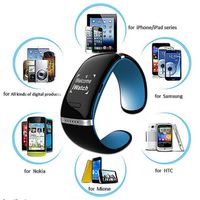
If your iTools auto-catcher is constantly dropping its connection, missing crucial on-screen prompts, or simply refusing to pair, you are not alone. The default manuals included with these devices are famously vague, leaving players to guess the correct timing parameters. This guide directly solves that problem. By detailing exact millisecond inputs, navigating specific in-game UI menus, and addressing aggressive background battery protocols on modern operating systems, I will show you how to configure your setup for uninterrupted, reliable performance.
Synergizing Your Auto-Catcher with Fonelora Location Changer
One of the most frequent complaints about auto-catching hardware is that it is functionally useless if you are sitting still. To get the most out of your accessory, your in-game avatar needs to be moving to encounter new targets and resource nodes. This is where integrating GPS simulation software creates a fully automated, hands-off grinding loop.
Fonelora Location Changer is a premium, PC-tethered location simulation tool that pairs perfectly with background auto-catchers. Instead of driving around your city wasting gas, you can connect your phone to your computer and use Fonelora to establish a localized, automated walking route.
By setting a realistic 4km/h looped walking route in Fonelora, your phone’s GPS simulates a casual stroll through a local park. As your simulated avatar walks, the iTools device continuously scans and automatically catches targets in the background. Fonelora’s built-in Safe Game Mode is crucial here: it restricts your movement speeds and respects built-in cooldown timers, simulating organic human travel to prevent server synchronization errors.
Furthermore, Fonelora smoothly supports modern iOS and Android systems without requiring a complex root or jailbreak procedure. . While it is a paid software, the investment is worthwhile for advanced players who want to safely combine GPS routing with hardware automation. It allows you to reliably gather resources while you are working at your desk or completing household chores.
Step-by-Step Guide to Spoof Your Location
1. Connect Your Device: Download and launch Fonelora Location Changer on your Windows or Mac computer. Connect your iPhone or Android smartphone using a USB cable, Wi-Fi, or Bluetooth.
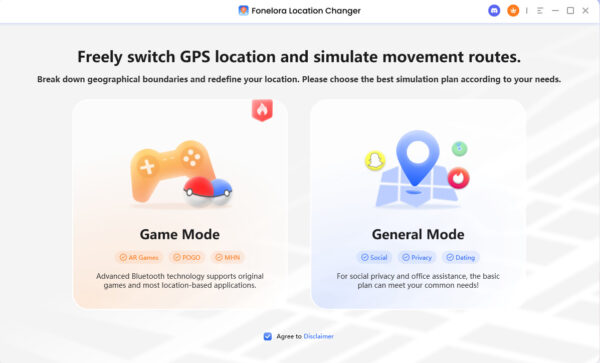
Connect Your Device
2. Choose a Location Mode: Select “Teleport Mode” from the main interface. This prepares the software to broadcast a new coordinate.
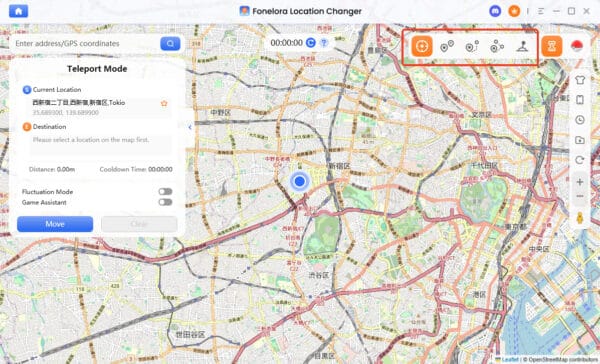
Select Your Mode
3. Change Your GPS Location: Enter your desired destination into the search bar, then click “Move.” Your phone’s GPS will instantly update across all installed applications, completely masking your real-world location on Snapchat.
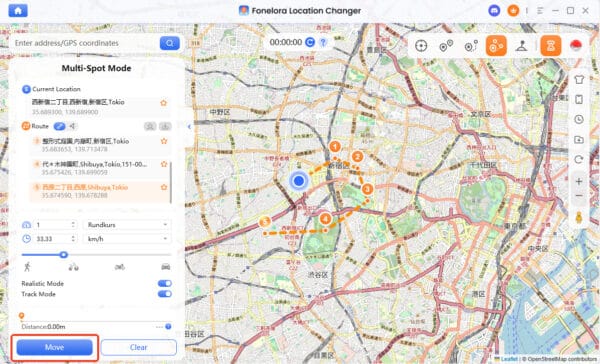
Change Location Instantly
Step-by-Step: Configuring Advanced iTools Auto Catch Settings
Most connection errors happen because users skip the exact in-game pairing sequence or leave the hardware’s input timing on its default, overly aggressive setting. If the hardware attempts to send an action before the game server has even loaded the target, the connection will drop.
Follow these precise steps to pair your device and set the correct parameters (using Pokémon GO as the primary example for UI navigation):
1. Initiate the Physical Hardware Pairing
Do not pair the iTools device directly through your phone’s main Bluetooth menu first. Instead, open your phone’s Settings > Bluetooth and ensure it is turned on. Then, press the physical button on your iTools accessory. You should see the LED light flash Blue (indicating it is in pairing mode).
2. Connect via the In-Game UI
Open your game application. Navigate to the Main Menu, tap Settings (the gear icon), and scroll down to Connected Devices and Services. Select Accessory Devices.
Press the physical button on your iTools device one more time. The device name (e.g., Pokemon GO Plus or iTools) will appear under “Available Devices.” Tap it on your screen. The in-game icon will illuminate, and the accessory will vibrate to confirm the connection.
3. Dial in the Exact Millisecond Delays
If you are using a companion app to adjust the hardware’s background behavior, you must change the default capture delays.
Catch Delay: Set this between 1200ms and 1500ms. Anything faster (like 500ms) will often result in the game ignoring the input because it registers as inhumanly fast, which can flag your account or cause the app to freeze.
Spin/Collect Delay: Set this to 1000ms.
4. Enable Unrestricted Background Processing
Your operating system will aggressively try to kill the game when you lock your screen.
On iOS: Go to Settings > General > Background App Refresh and ensure it is toggled ON for your specific game.
On Android: Go to Settings > Apps > [Your Game] > Battery, and change the setting from “Optimized” to Unrestricted.
After adjusting settings and understanding limitations, you will achieve smoother automation with virtually zero dropped connections.
iTools Auto Catch Not Working? Exact Troubleshooting Steps
If you are dealing with missed catches or random disconnects, you need to troubleshoot based on how your specific OS handles Bluetooth cache and memory. Users should ensure their device and software versions are fully supported before enabling features, but if you run into trouble, follow these platform-specific fixes.
The iOS Airplane Mode Fix (iOS 16 & 17)
On newer iOS builds, aggressive memory management often corrupts the Bluetooth handshake. If your iTools device blinks Red during setup, or disconnects immediately after locking the screen, follow this sequence:
1. Go to Settings > Bluetooth, tap the “i” next to your accessory, and select Forget This Device.
2. Swipe down to open the Control Center and turn Airplane Mode ON. Wait exactly 10 seconds.
3. Turn Airplane Mode OFF.
4. Restart your game and repeat the in-game pairing process from Step 2 above. This forces iOS to clear the corrupted Bluetooth state.
The Android “Sleeping Apps” Protocol (Android 12 & 13)
Android 12 and 13 are notorious for killing background Bluetooth connections to save battery. If your connection drops exactly 3 to 5 minutes after locking your screen, the OS has put the app to sleep.
1. Navigate to Settings > Battery and Device Care > Background Usage Limits.
2. Tap on Never Sleeping Apps.
3. Tap the + icon and add your game (and the iTools companion app, if applicable) to this list.
If the device still refuses to pair, you need to clear the hidden Bluetooth cache. Go to Settings > Apps, tap the filter/sort icon, and toggle on Show System Apps. Scroll down to Bluetooth, tap Storage, and hit Clear Cache. Restart your phone immediately afterward.
Frequently Asked Questions
What do the LED light colors on the iTools device mean?
Generally, a flashing Blue light means the device is ready to pair. A solid Green or White flash indicates an item is being targeted or caught. A flashing Red light means the connection has dropped, the server rejected the action, or your in-game inventory is entirely full.
Why does my auto-catcher only use standard, low-tier items?
By default, official and third-party auto-catch hardware is hardcoded by the game developers to only utilize standard-tier items (like basic Pokéballs). You cannot force the hardware to use Great or Ultra tier items through the Bluetooth interface. You must manually ensure you have a large stock of basic items in your inventory before starting a session.
Conclusion
Reclaiming your time from a tedious grind requires technical precision, not guesswork. By manually adjusting your input delays to a safe 1200ms–1500ms range, actively managing your device’s background battery permissions, and understanding the specific LED hardware cues, you can configure your setup for true efficiency. You no longer have to deal with connections dropping the moment your screen turns off.